Applies to:
- AO, BCs and Drivers
PackageRoute App is designed for use with phones which are always connected. However many CSPs may have rural routes or may deliver in areas with poor cellular connectivity. The Offline Maps functionality allows PackageRoute to pre-download the map of your service route area. So if and when drivers encounter poor cellular connectivity while delivering, PackageRoute App will require very little cellular data to operate and you can seamlessly service your stops.
Step 1: Select route map area
- On your phone, go to Menu > Route and select the route number for which you would like to pre-download the map area. If you are a driver with an assigned route, you will not need to select - unless you have more than one route route assigned to you.
- Tap the List / Map View icon on the top right corner
- Tap on the Tools tab towards the top
- Tap Offline Maps.
Step 2: Edit map region
You will see a map of your route territory with up to two square highlighed areas. One is the map area bound computed for this selected route. The other is the map area bound computed from your current location up your selected route area.
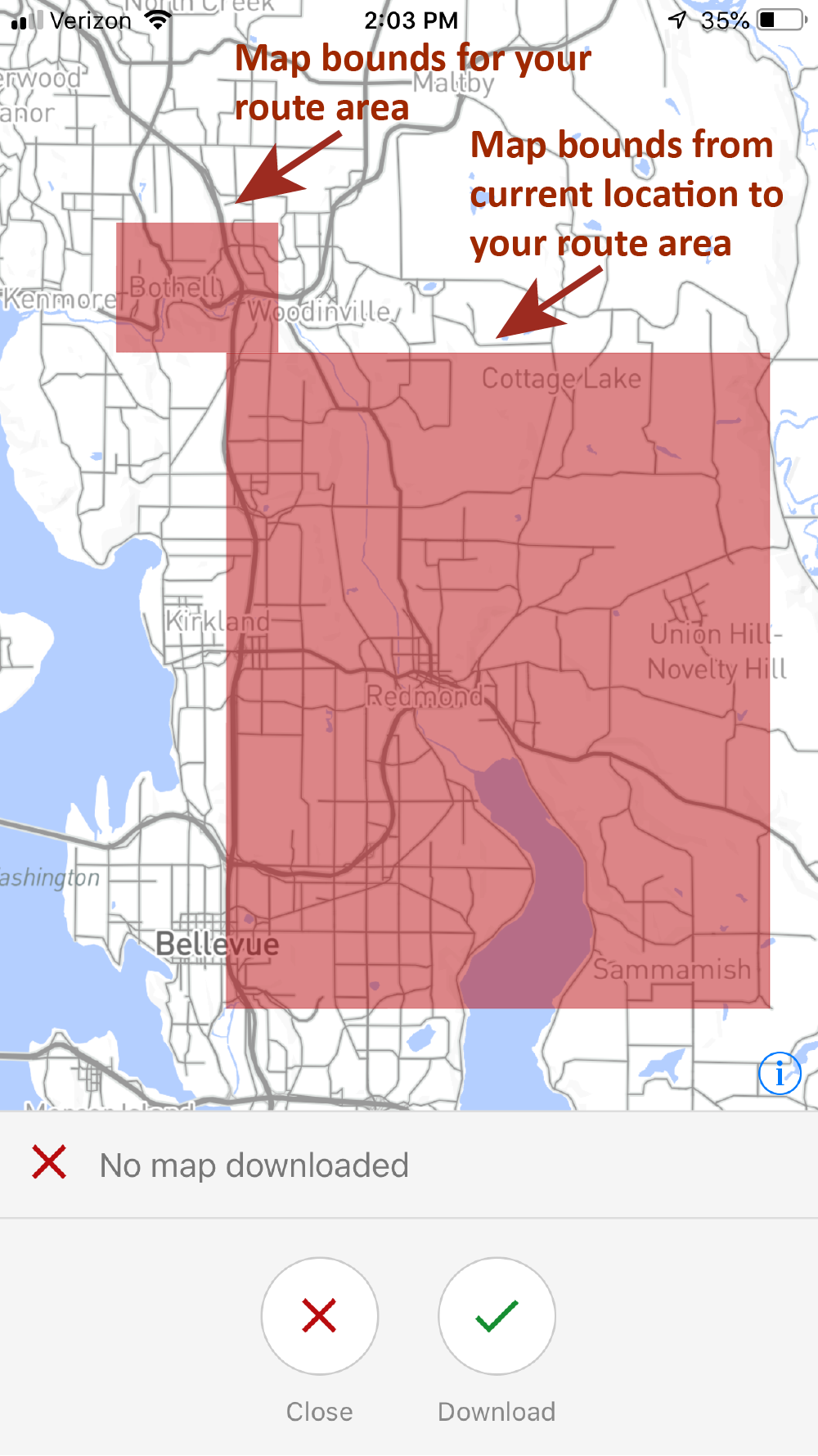
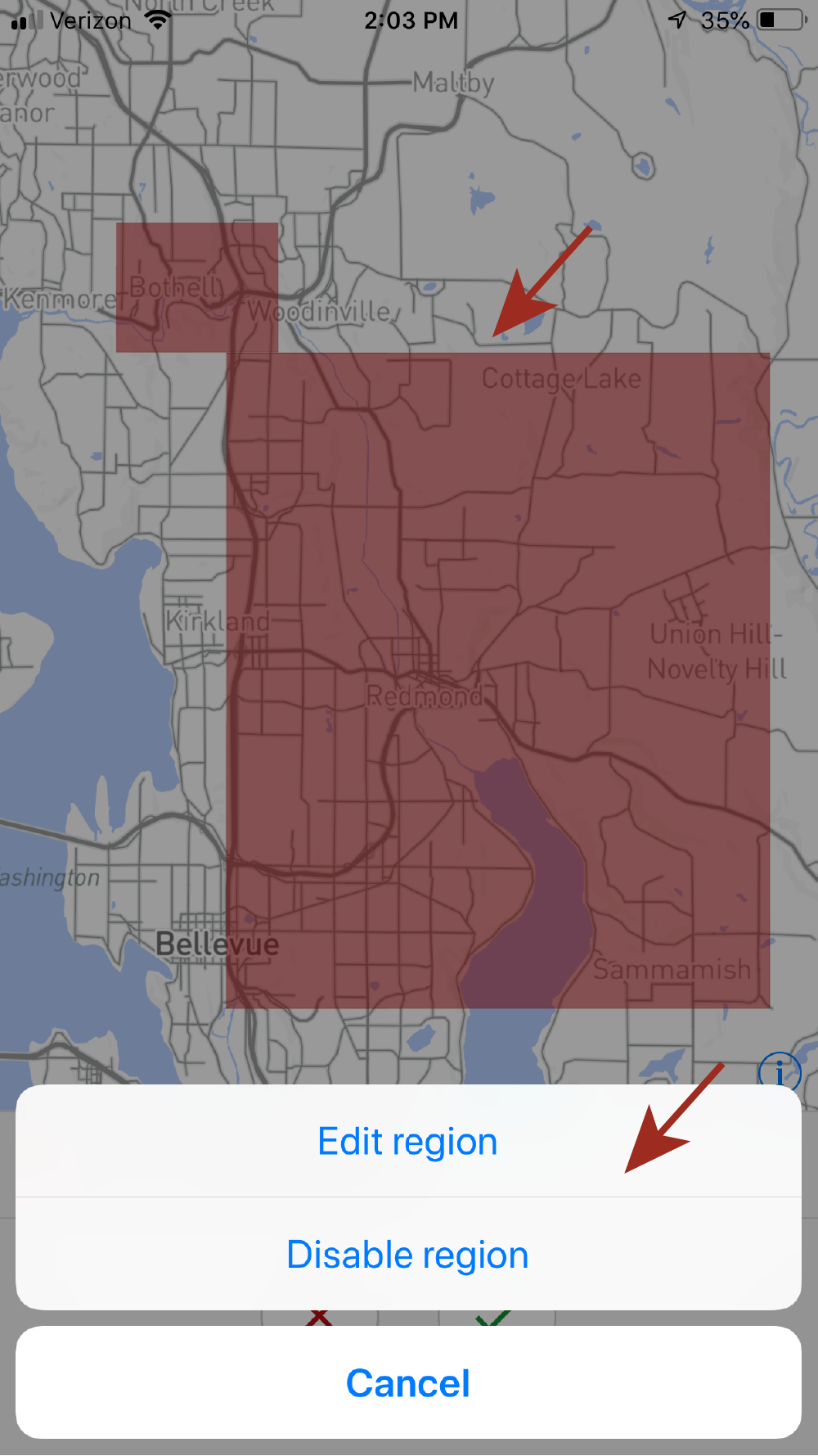
Tap a region to either disable or edit its map area bounds. Note PackageRoute downloads multiple layers of map data so depending on your geography, increasing these bounds will increase the download size and time for the area map. To edit, simply drag the circular corner to the desired area bounds.
Step 3: Download the map
Once you are happy with the map area bounds, tap Download.
NOTE: Depending on the size of your map area bounds, the map download size can be large. Hence PackageRoute requires that you only download your offline map when a WiFi connection is available
Follow this video for a quick demonstration: